
 Hosting type

 eCommerce Hosting
 Magento Hosting
 Shared Hosting
 Reseller Hosting
 cPanel Hosting
 Linux Hosting
 Game Hosting
 Hosting for WordPress
 Windows Hosting
 Laravel Hosting
 Direct admin Hosting
 Plesk Hosting
 Ai Hosting
 Dedicated Servers
 Cloud Servers
 Managed Servers
 Unmanaged Servers
 Server Management
 VPS Server
 GPU Servers
 WHOis protection
 CDN Services
 SSL Services
 Domain Transfer
 Domain Registration
 DDoS Protection Services
 Website Builders
 IPTV Hosting Providers
 SSL Certificate Providers
 CDN Service Providers
 Data Center Service Providers
 AWS Managed Service Providers
 GCP Managed Service Providers
 Azure Solution Providers
 Service type

 eCommerce Development Companies
 PHP Development Companies
 Laravel Development Companies
 Full-Stack Development Companies
 WordPress Theme Development Companies
 WordPress Plugin Development Companies
 Custom WordPress Development Companies
 WordPress eCommerce Development Companies
 WordPress Maintenance & Support Companies
 Cloud Consulting Companies
 DevOps Service Companies
 Server Management Companies
 Migration & Deployment Companies
 Coupons
  Resources

Whether you have recently revised your pricing or updated a plan’s features, this guide walks you through how to edit your existing hosting plans directly from your dashboard.
Step 1: Log In and Go to Your Dashboard
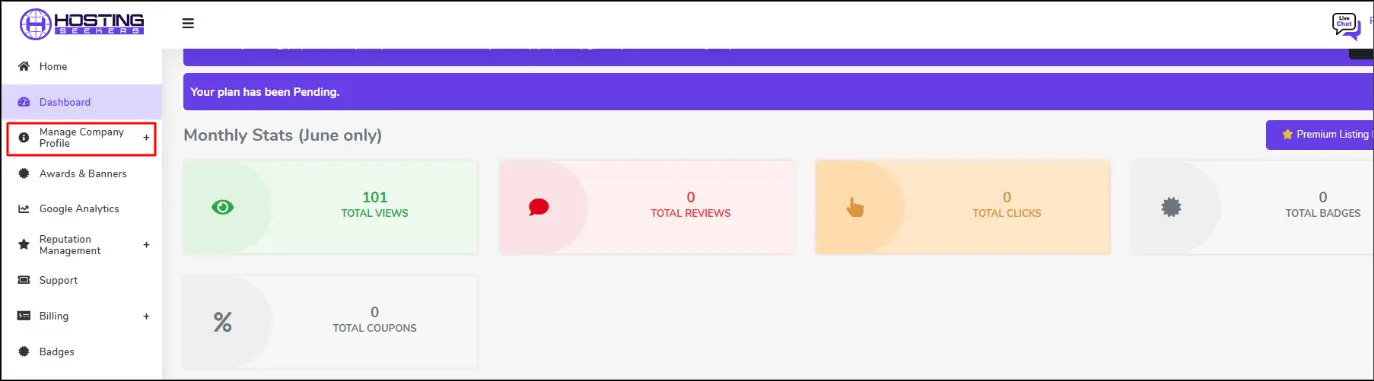
Log in to your HostingSeekers company account. Once logged in, you will land on your Dashboard, where you can see your Monthly Stats, including total views, reviews, clicks, and badges.
Step 2: Select “Hosting Plans”
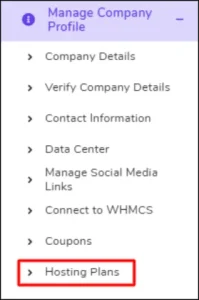
After expanding the Manage Company Profile menu, you will see several sub-options listed. Select the “Hosting Plans” subsection.
Step 3: Select Your Hosting Category
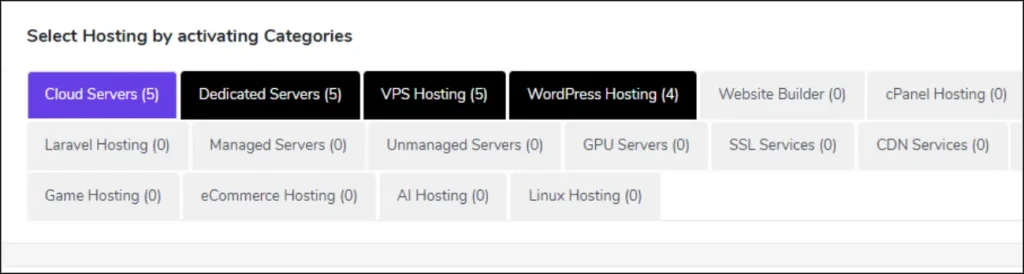
On the Hosting Plans page, you will see all the hosting categories available on HostingSeekers (e.g., Shared Hosting, VPS, Dedicated Servers, etc.).
Select the hosting category for which you want to update the plan and pricing. For example, if you want to edit your Shared Hosting plans, click on the Shared Hosting category.
Step 4: Review the Plans You Have Added
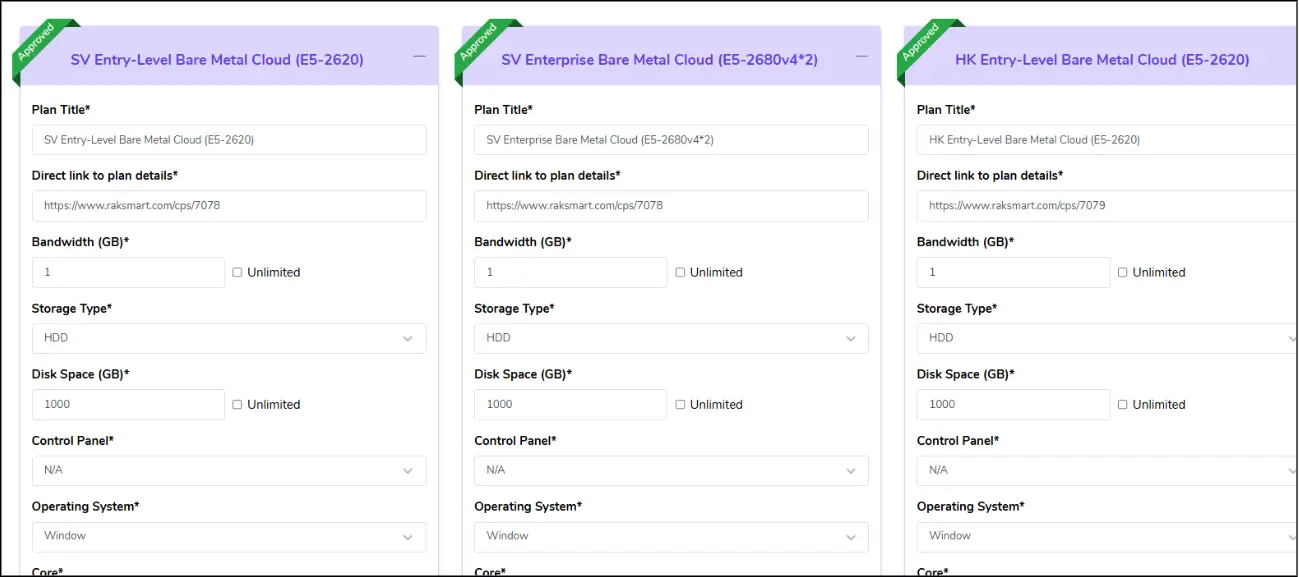
Once you select a category, you will see a list of all the hosting plans you have already added to that category. Review the plans displayed to confirm that you are editing the correct one. Each plan entry will show details such as the plan name, storage, bandwidth, and current pricing.
Step 5: Edit the Price
Next to the plan, you want to update it. Locate the price field and update it to reflect your new pricing. Make any other necessary changes to the plan details at this stage as well. Once done, click Update to apply your changes.
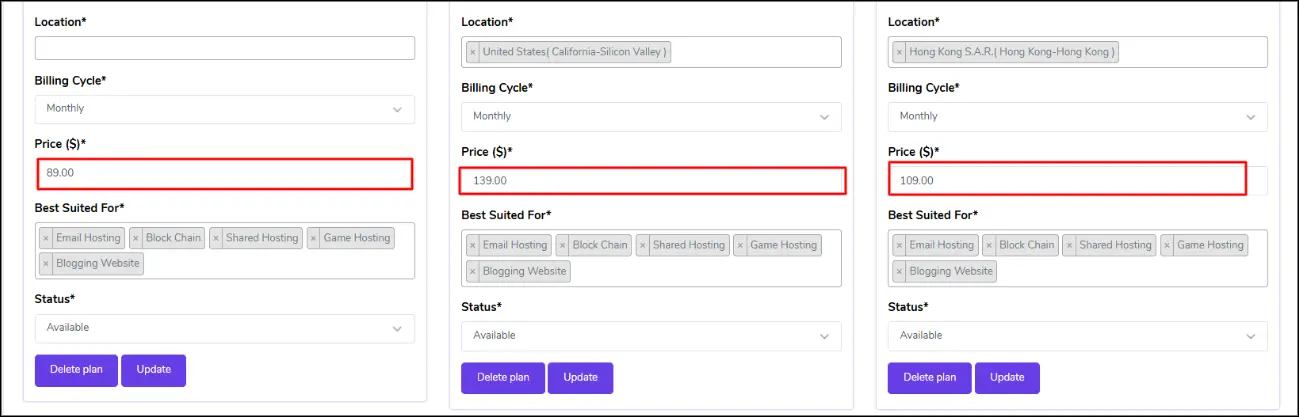
Your updated pricing will now reflect on your live HostingSeekers listing.